
I have mentioned that there are some free built-in strategies that can produce a fair amount of winnings even if you just use them as is.
One of our users commented that they would have won more if they had set a stop loss.
I would like to explain how to insert it.
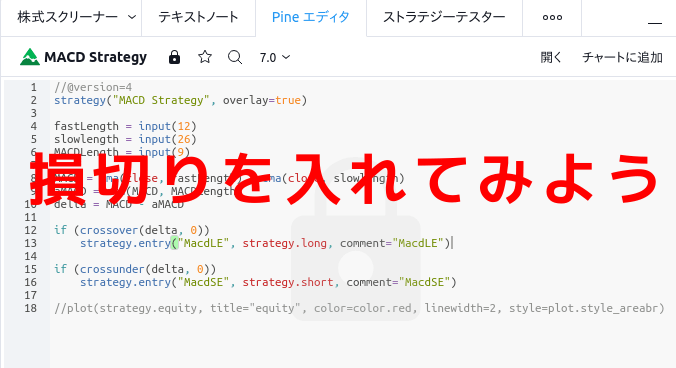
TradingView is so interesting
Automatic trading
Hiroshi Matsumura
I’m saying this in a very arrogant way and will explain it to you, but actually, a user of ours told me how they solved the problem themselves.
So let’s get started
If you haven’t used TradingView yet, please go here:
https://tradingview.go2cloud.org/SH4OB
This time, we will use the built-in strategy “MACD Strategy”.
The method is the same for other strategies.
table of contents
- View the source code of the MACD Strategy
- Create your own strategies based on existing source code.
- Entering a stop loss
- Add to Chart
- You can also change other parameters
- Did the performance improve?
First, let’s view the source code of the MACD Strategy.

Yes. Last time I explained how to use the built-in strategies, so some of you may already be familiar with that.
Click on Indicators.
Next, enter MACD in the search box to make it easier to find.
Click on MACD Strategy.
Then

The backtest results will be displayed at the bottom like this.
This time, I happened to be viewing the 1-hour chart and when I applied the MACD Strategy, I was surprised to see the results.
By the way, blue is profit. TradingView allows backtesting for 10,000 bars. For the hourly bar, it goes back to 2019-04-05 01:30.
The profit amount is 1,486,000 yen. 300% in 1 year and 4 months!
I didn’t do anything special. It was a free strategy included in TradingView.
Well, that’s not important this time, so let’s leave it aside. (Well, I did link mine. lol)
Let’s go back to placing stop losses.
Next, display the source code.
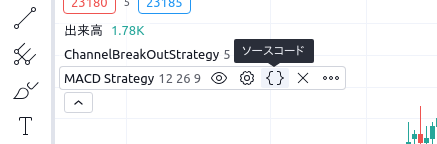
There is a word “MACD Strategy” written in the upper left corner of the chart.
When you hover your mouse over the text, several icons will appear to the right.
Click {} (source code) in it.
Then the bottom row of the chart will look like this:

The source code for the strategy that delivers such amazing performance is only 18 lines long. That’s amazing, too.
Now, I would like to add a stop loss line here, but in fact this source code is read-only and cannot be written.
So what should we do?
Create your own strategies based on existing source code.
Here’s how to do that.
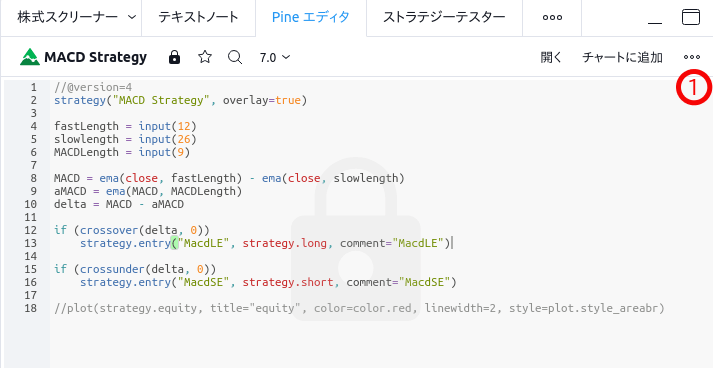
This is a button that displays the menu. When you click it, the following popup will appear, so click Make a copy.

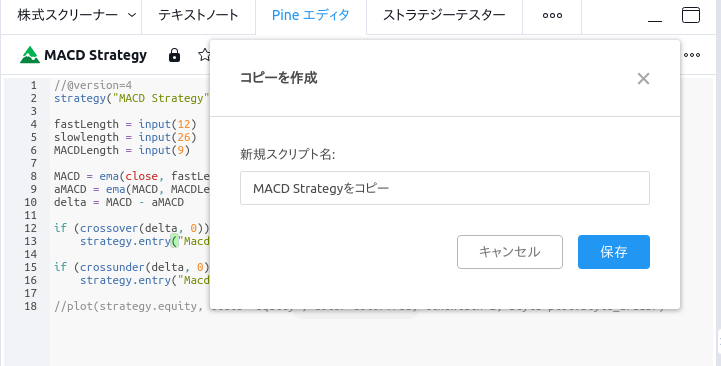
You will be asked to give it a name. Save it as “MACD Strategy with Stop Loss” or something similar.
Let’s try checking the indicators and strategies here. Once you get used to it, this is no longer necessary.
Click My Scripts.

Look, you have your own script.
There are two scripts in the image because I have already started one.
Now that we have confirmed this, let’s get back to the main topic.
Place a stop loss.
The screen (editor) where you write your script now looks like the image below.
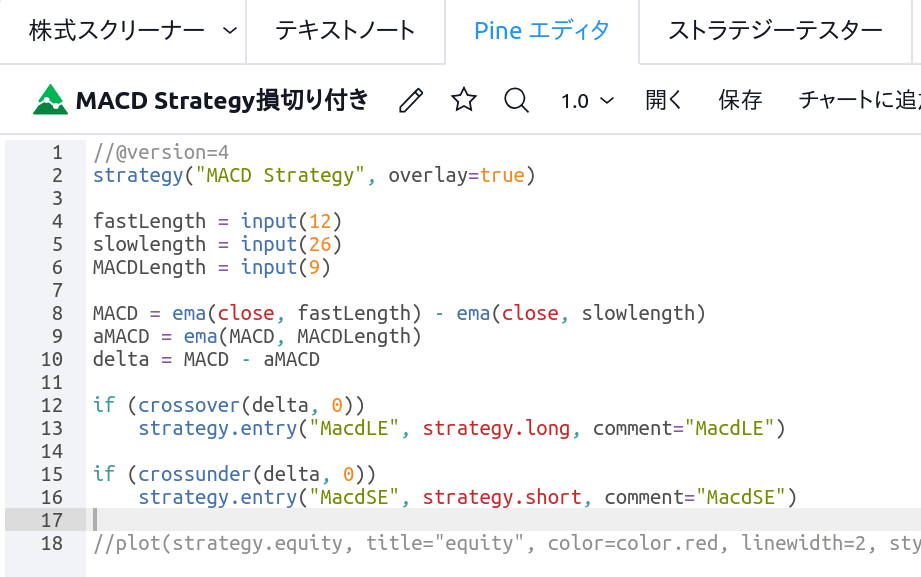
On line 17, type the following:
strategy.exit("Loss Cut",loss= 40)

This is what it looks like.
The tick rate is 40 ticks, which means that mini trades are in increments of 5 yen, so you will exit if you lose 200 yen.
The wording for “Loss Cut” can be anything. It is the wording that will be displayed on the chart or trading history.
This line supports both buying and selling.
This is functionally sufficient, but the display name will remain the same, so
let’s change the display name as well.


Add it to your chart.
Once you’ve done this, save what you’ve entered and add it to the chart.

Look at the top left of the chart.
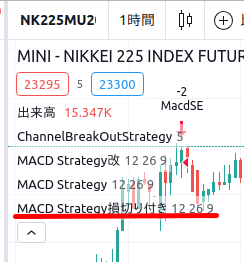
Yes, it is displayed correctly.
This completes the process of setting stop loss in the built-in strategy. Thank you for your hard work.
Please try changing the stop loss value to 40.
You can also change other parameters.
As many of you may have already noticed, you can also freely change the MACD parameters 12, 26, and 9.
Please try it.
bonus
How did your performance change after you put in a stop loss?
I’m sure some of you have tried it for yourself.

During the same period, profits came to $1,625,500.
Without stop loss, the amount would have been 1,486,000 yen, so this is an improvement of 139,500 yen.




 株、先物とFXの自動売買をつくる北浜の社長ブログ