
This is an announcement about the upgrade of Order by Mail with TradingView.
TradingView offers built-in strategies.
We have responded to the messages emanating from these strategies.

My current interest is in TradingView
automatic trading
Hiroshi Matsumura
TradingView has a huge number of built-in strategies.
Strategy is a trading rule
Many strategies have been published by users, and it looks like the number will continue to increase.
If you set up alerts for these strategies, you can now trade automatically via email order.
To be honest, I think there are very few people who can write TradingView Pine scripts and perform their own automated trading.
However, TradingView has a lot of strategies that are really easy to get.
Furthermore, backtesting can be done for up to 10,000 bars.
By trying out every strategy possible and running several of the best performing ones, you will be able to create your second pillar of automated trading.
procedure
- Become a TradingView user. If you haven’t already, click here.
- Open the desired chart, this time NK225M1! (Nikkei 225 mini major month continuation)
- Add a strategy
- Set up alerts
This is the end of the work on TradingView. From this point on, Mail de Order will take care of the work.
1. Become a TradingView user
First of all, use TradingView.

2. Open the desired diagram
This time we will use the major month connecting chart of the Nikkei 225 Mini.
To display this chart, you need to become a paid user, although it is free
for 30 days. If you feel that it is not useful, you can quit before the 30 days and there will be no charge, so don’t worry.
First, enter NK225M1! in the Ticker and click the magnifying glass icon on the far right.

So what happens then?

So, hurry up and register for free.
Then enter NK225M1! in the Ticker again and click the magnifying glass icon on the far right.
Then,
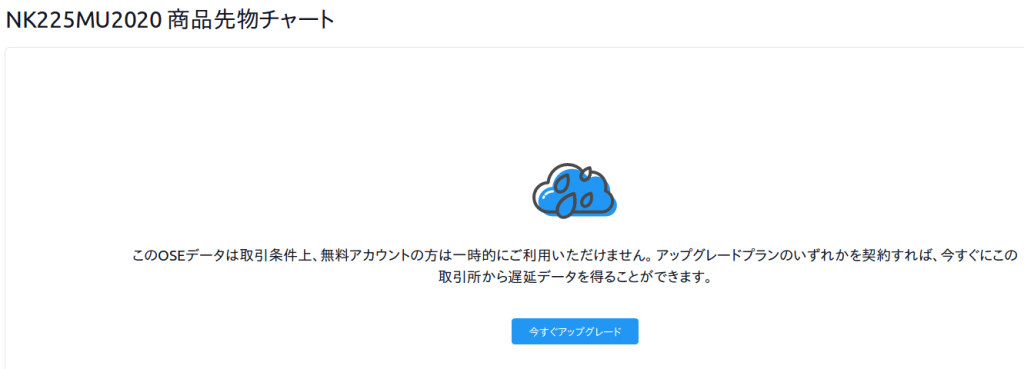
I’ll tell you to upgrade. I have no choice but to upgrade for free for 30 days.
Click the button at the bottom right to try it free for 30 days.
By the way, if you are using Mail de Order with TradingView, we recommend using webhooks for alerts, so you will end up having to upgrade.
For now, the cheapest plan will suffice.


Actually, the next step is tricky.

I tried several times but couldn’t pay with a card so I paid with PayPal.
Thank you so much for all your hard work up to this point.
However, the hardships continue.
Enter NK225M1! in the Ticker again and click the magnifying glass icon on the far right.
Now you will be asked to sign a consent form.
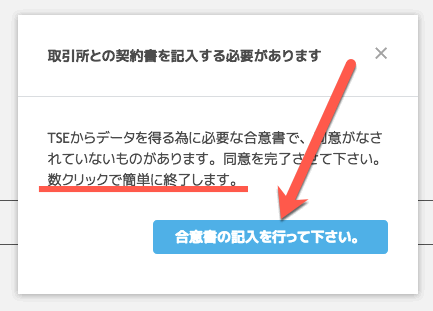
It would be fine if it was available in Japanese, but sometimes it’s available in English.
And next is this
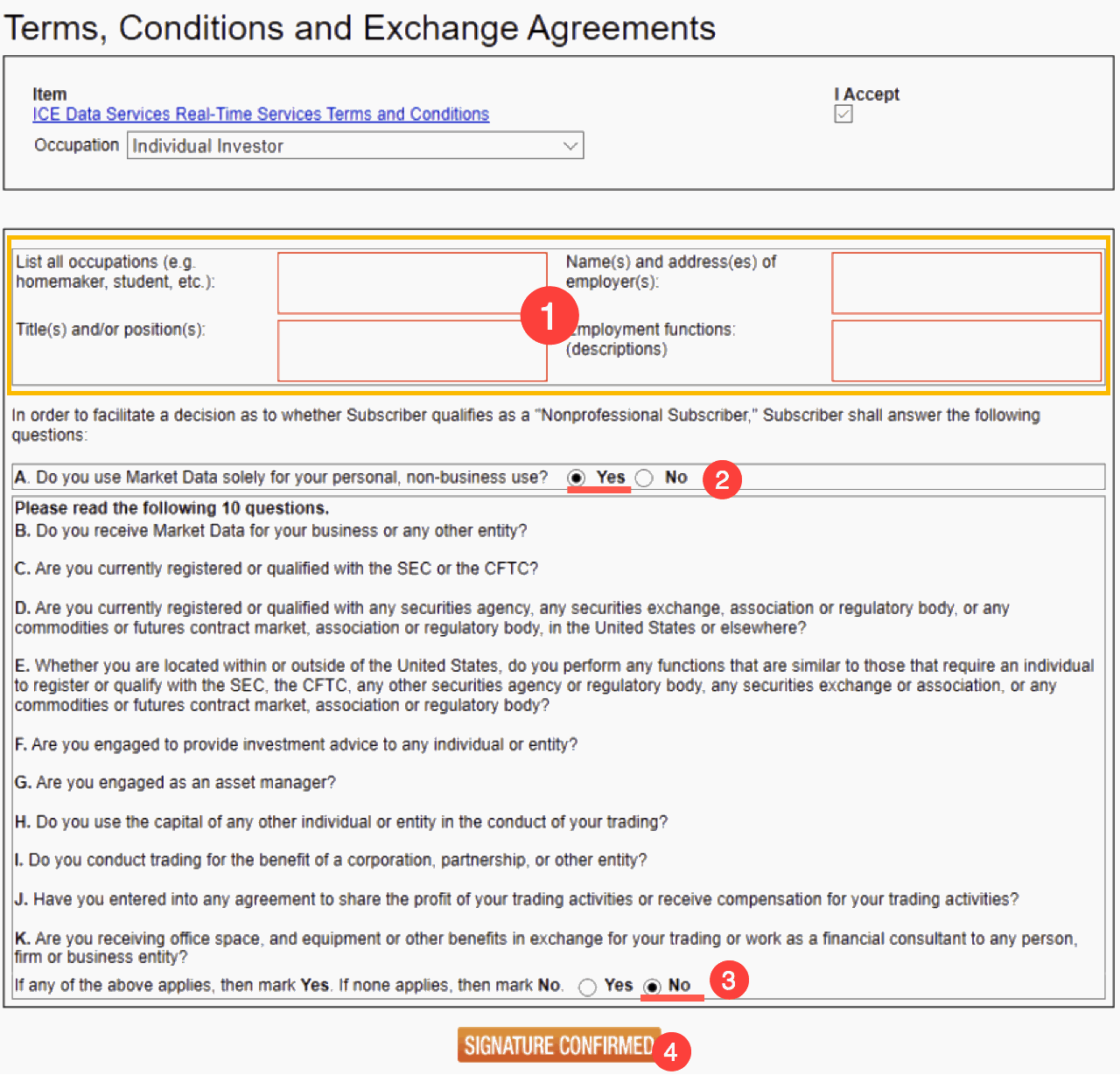
You may feel like giving up, but please read the instruction manual and get through it.
Just between you and me, you don’t need to think too deeply about the four columns in ①. (Just understand.)
http://blog.livedoor.jp/tradingview/archives/9186948.html
Once you’ve done this, you’ll be able to open the Nikkei 225 mini futures chart.

It’s the same value as the chart you see at the brokerage. But it’s delayed by 20 minutes. If you want to see it in real time, it’ll cost you an extra $2.
A 20 minute delay is not a problem when using Mail de Order with TradingView, so I will continue.
If you want to get results consistent with the backtest, please purchase real-time data.
3. Add a strategy
As shown in the image at the beginning, TradingView has many built-in strategies.
I feel like I can get some decent results using them.
For example, here are the backtest results of a strategy I found in about 10 minutes:
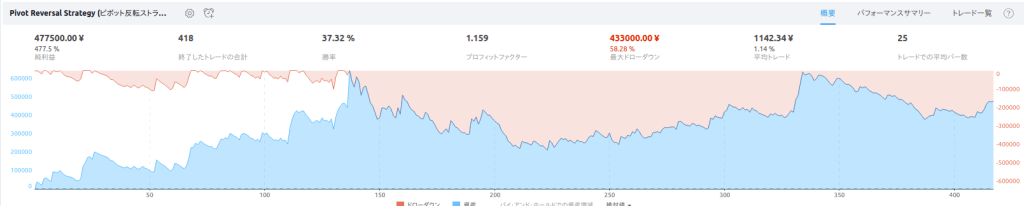
The first 130 trades went well. After that, I endured a drawdown and made a profit again.
It took me about 10 minutes to find it, so I think if I took my time I could find something better.
Now let me explain how to find it.

Click on the indicator at the top of the chart.
Entering strategy in the search box will narrow down your results to just strategy.
By the way, the main difference between indicators and strategies on TradingView is whether or not they produce backtest results.
There may be other examples, but I’ve only been using TradingView for 1.5 months so please bear that in mind.

Please choose the one that catches your eye. I have no idea which one is best.
What I found in 10 minutes is Pivot Reversal Strategy.
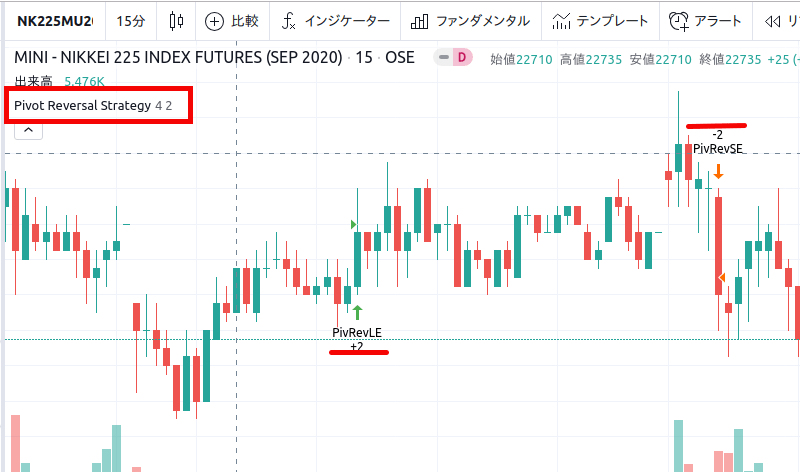
This will cause things to appear that weren’t on the chart before.
The part shown in red above and the backtest results at the bottom.
From here on, I would like you to take your time.
The results of this backtest will vary if you change some elements of the same strategy.
Leg length is a parameter that can be set in the strategy.
First, let’s look at how to change the length of the legs.

The part to click is the arrow. There are a huge number of legs available, so please try them out.
Next are the parameters that can be changed in the strategy.

When you hover your mouse over a strategy name, an icon will appear next to it.
Click on the gear icon here.
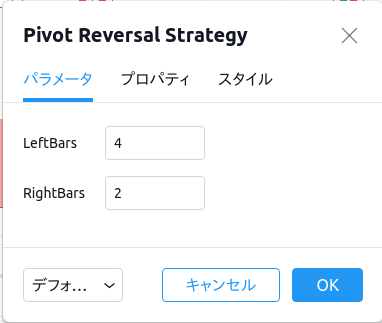
This will show you the parameters that can be changed for this strategy.
The backtest results will change each time you change the value, so try to find a good point.
Try doing this with different strategies, different time frames and different parameters to find backtest results that you are satisfied with.
4. Set up alerts
This is the last step to do on TradingView.
However, if you apply for email ordering, it will come back to you again.
Anyway, here’s how to set up an alert.
TradingView not only allows you to set alerts on the strategies I will introduce in this article, but also on indicators.
In addition, you can now set alerts for trend lines that you draw yourself, which was previously thought to be impossible with automated trading, and it seems you can set various other alerts as well. I’m still a beginner, so let’s learn together.
Here’s how to set up alerts in your strategy.
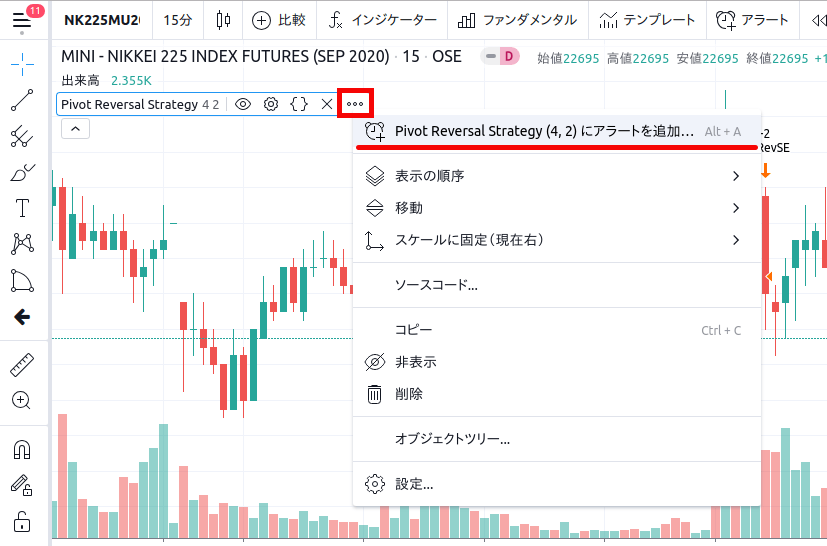
3. In order to change the parameters as in the “Add a Strategy” step, I hovered my mouse over the name of the strategy to display an icon.
On the far right side there is an icon with three circles.
Clicking this will bring up a small pop-up window.
At the top of the small screen that appears, there is an option to add an alert, so click on it.

Yes, when you see this, click the Create button to complete the alert setup.
It was surprisingly easy compared to what we’ve done so far.
You will return to this screen after applying for Mail-de-Order, but for now this is all you need to do on TradingView.
System trading has previously been difficult to get into.
TradingView makes this easy.
All that’s left to do is connect this alert with our Mail de Order service and your automated trading will be complete.
Not long now. Let’s do our best.




 株、先物とFXの自動売買をつくる北浜の社長ブログ